Documentation
What it does
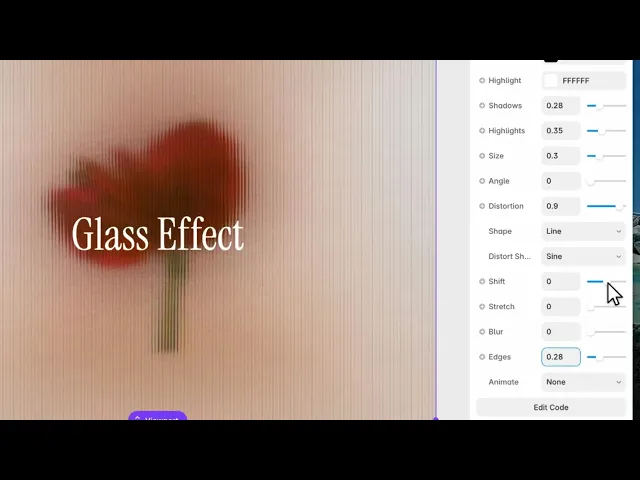
It puts your image behind ribbed glass — the kind used in bathroom windows and, lately, in half the interiors on the internet.
The image is refracted through each rib, so it's sliced and offset rather than blurred. You can tell something is there without being able to read it.
Controls
16 controls.
Control | Type | Default | Notes |
|---|---|---|---|
Image | ResponsiveImage | — | — |
Back | Color |
| — |
Shadow | Color |
| — |
Highlight | Color |
| — |
Shadows | Number |
| 0–1 |
Highlights | Number |
| 0–1 |
Size | Number |
| .05–1 |
Angle | Number |
| 0–180 |
Distortion | Number |
| 0–1 |
Shape | Enum | Line / Wave / Zigzag / Triangle / Sine — default | — |
Distort Shape | Enum | Sine / Triangle / Linear / Smooth / Step — default | — |
Shift | Number |
| -1–1 |
Stretch | Number |
| 0–1 |
Blur | Number |
| 0–1 |
Edges | Number |
| 0–1 |
Animate | Enum | None / On Reveal / On Hover / Both — default | — |
Working through the panel
The ribs
Shape is the profile of the glass: line, wave, zigzag, triangle or sine. Line is the classic fluted look; the others read as decorative or industrial.
Size is how wide each rib is. Angle turns them, and vertical ribs are the convention — that's what real fluted glass looks like, and horizontal reads as blinds instead.
Distortion is how much the image bends inside each rib. High is the whole point of the effect; low leaves you with a striped image.
Light on the glass
Three controls make it look like glass rather than a pattern.
Shadows and Highlights are the dark and light edges along each rib, with their own colours. Real glass catches light at the ridges, and without these it flattens into stripes.
Edges controls the definition where one rib meets the next.
These are the difference between a filter and a material. Turn them all to zero and you'll see it immediately.
Shaping and motion
Distort Shape is the curve used for the refraction — sine, triangle, linear, smooth or step. Sine is the natural one; step gives a hard, blocky offset.
Shift moves the image behind the glass, and Stretch elongates it. Blur adds softness on top of the refraction.
And Animate has four settings: none, on reveal, on hover, or both. On reveal is a nice touch for a portfolio grid — the glass appears to form as the image scrolls in.
One last thing worth knowing. There's no control for it, and there doesn't need to be: the component automatically calms itself for visitors whose system asks for reduced motion.
Performance and limits
It stops rendering when it scrolls out of view and when the browser tab is hidden, so an instance below the fold costs nothing until the visitor reaches it.
Visitors whose system asks for reduced motion get a calmer version automatically.
Static rendering is handled, so canvas thumbnails and exports show a settled frame rather than a blank box.
It renders with WebGL at whatever size and pixel density the frame needs — there is no image to download and no resolution to outgrow.
Good to know
No setup or coding required. Responsive across desktop, tablet, and mobile.
Refund policy — due to the nature of digital products, all sales are final. Once purchased, this component is non-refundable. Please make sure it fits your needs before completing the checkout.
Support: hi@alicorak.com