Documentation
What it does
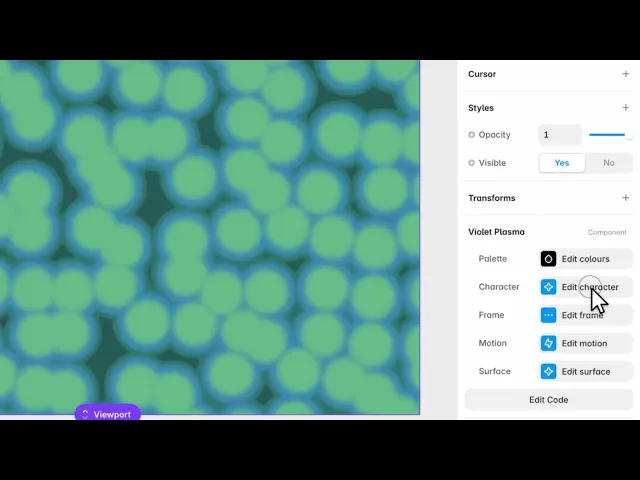
The component fills its frame with layered clouds of colour that drift and fold into each other. It is a shader, generated live rather than played back, so it never loops or repeats and it stays sharp at any size.
The panel is organised as five collapsible groups rather than a long flat list, which is why 27 settings do not feel like 27 settings. Open one group, change what it holds, close it again.
Where you would use it
A hero section, where a photograph would be too specific and a flat colour too plain
Behind a form or a pricing table, at low intensity, to give the section edges without a border
A full-bleed divider between two content-heavy sections
Put text over it and check contrast in the corners as well as the centre — the field is not uniform, and a headline that reads well in one spot can be lost where a bright fold passes.
How to add it
Paste the component and give it the frame you want filled.
Open Palette and set the four colours.
Open Character and set Intensity.
That is the whole job for most uses. The remaining groups are refinement.
Controls
Palette — the four colours that build it
Control | Default |
|---|---|
Low |
|
Deep |
|
Mid |
|
High |
|
They run darkest to brightest and the shader blends between them, so the order matters more than the individual choices. Keep Low genuinely dark and High genuinely bright; four colours of similar lightness produce a flat, muddy field no matter how nice each one is on its own.
Brand-matching usually means keeping the defaults' spacing and shifting the hue — not replacing all four with brand colours.
Character — what the plasma is like
Control | Default | Range |
|---|---|---|
Intensity |
| 0–100% |
Zoom |
| 0–100% |
Warp |
| 0–100% |
Contrast |
| 0–100% |
Intensity is the master control. Low is a haze you can put a paragraph on; high is a nebula that will fight anything placed over it.
Zoom sets the scale of the clouds — low gives a few large forms, high gives many small ones. On a wide hero, low Zoom reads as deliberate; high Zoom starts to look like noise.
Warp is off by default and worth a try. It bends the field out of its regular flow and is the fastest way to make the result stop looking like a default.
Frame — where it sits
Control | Default | Range |
|---|---|---|
Seed |
| 0–9999 |
Rotate |
| −180–180° |
Offset X / Y |
| −100–100% |
OKLab |
| — |
Seed is the one to reach for when the composition is wrong. Every value is a different arrangement of the same plasma. If a bright fold lands exactly where your headline goes, do not fight it with Offset — change the Seed and try another arrangement.
OKLab changes how colours are blended. It generally keeps mid-tones cleaner between distant hues; leave it off unless a gradient between two of your colours looks muddy, then turn it on and compare.
Motion
Control | Default | Range |
|---|---|---|
Speed |
| 0–100% |
Drift |
| 0–100% |
Speed can go all the way to zero, which freezes the field into a still image. That is a legitimate setting: you keep the generated look, lose the motion, and the frame stops animating entirely.
Drift adds slow travel across the frame on top of the internal churn. Useful on a tall section the visitor scrolls through slowly.
Surface — the finishing pass
Control | Default | Range |
|---|---|---|
Detail |
| 0.5–5 |
Brightness |
| 0–100% |
Saturation |
| 0–100% |
Hue |
| −180–180° |
Vignette |
| 0–100% |
Blur |
| 0–100% |
Grain |
| 0–100% |
These act on the finished field, so they are the fastest way to fit it to a page without touching the palette.
Hue is the cheapest re-colour there is. Rotating it moves all four palette colours together and keeps their relationship intact — often a better result than picking four new colours by hand.
Blur plus low Intensity is the recipe for a background you can put text on. It removes the detail that competes with type while keeping the colour.
Grain defaults to 6 for a reason. A pure gradient shows banding on large areas; a little grain hides it. Do not take it to zero on a full-bleed hero.
Tips
Set Palette and Intensity first, then stop. Everything else is refinement, and it is easy to spend an hour on Surface controls that a Seed change would have solved.
Check it at the size it will actually be. Zoom and Detail read completely differently in a 400px card and a full-width hero.
For text over it: Intensity down, Blur up, and check the corners.
Performance and limits
It is a shader, so there is no image to download and no resolution to outgrow — it renders at whatever size and pixel density the frame needs.
It pauses when it scrolls out of view, and when the browser tab is hidden. A plasma below the fold costs nothing until the visitor reaches it, and the field resumes where it stopped rather than jumping forward by the length of the pause.
Static rendering is handled, so canvas thumbnails and exports show a fixed frame of the field rather than a blank box.
Good to know
No setup or coding required. Responsive across desktop, tablet, and mobile.
Refund policy — due to the nature of digital products, all sales are final. Once purchased, this component is non-refundable. Please make sure it fits your needs before completing the checkout.
Support: hi@alicorak.com


