Documentation
What it does
You do not write the outline. The component scans the page for heading tags, builds a list from what it finds, and keeps a highlight on whichever heading the reader has reached. Click an item and the page scrolls to it.
Because it reads the live page, the outline stays correct when you edit the article. There is nothing to update by hand and nothing to keep in sync.
Where you would use it
Beside a long article, sticky, so it stays with the reader
Documentation pages, where readers arrive looking for one section
Anywhere the page is long enough that a reader wonders what is below
On a short page it adds nothing. If the article has fewer than four or five headings, the outline is longer than the value it provides.
How to add it
Paste the component next to your article.
Set From and To to the heading levels you want listed.
Set Offset to your sticky header height, or clicked headings will land underneath it.
That is the whole setup. Everything else is presentation.
Controls
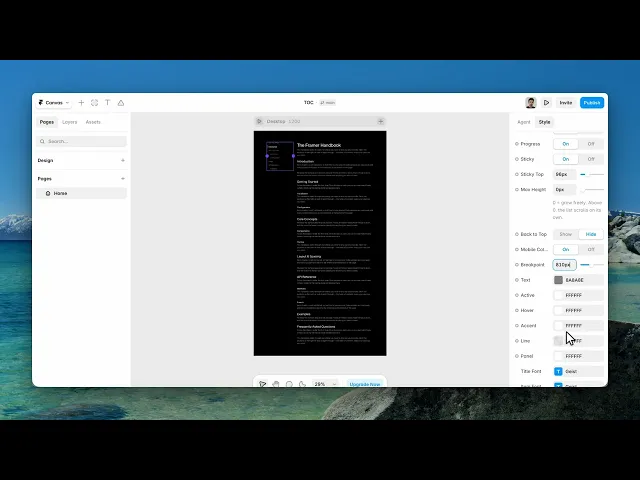
Twenty-six controls, but they come in eight small groups, and five of them only appear when they are relevant.
Heading
Control | Type | Default | Notes |
|---|---|---|---|
Title | Boolean |
| Show a label above the list. |
Title Text | String |
| Only appears when Title is on. |
What it picks up
Control | Type | Default | Notes |
|---|---|---|---|
From | H1–H6 |
| Highest level to include. |
To | H1–H6 |
| Lowest level to include. |
Scope | String | — | CSS selector for the area to scan. |
H2 to H3 is the right default for an article whose title is the only H1. Widening to H4 rarely helps — an outline with four levels of nesting is harder to scan than the page it describes.
Scope does more than filter. With a selector set, the component watches that element for changes and rebuilds the outline whenever the content changes. Without one, it scans the whole page body and only re-checks twice, shortly after load. So if your headings arrive late — from a CMS list, a tab, an accordion — set Scope, or the outline may miss them.
Layout
Control | Type | Default | Notes |
|---|---|---|---|
Style | Minimal / Numbered / Pill |
| Visual treatment. |
Indent | Number |
| 0–40px per nesting level. |
Spacing | Number |
| 0–24px between items. |
Set Indent to 0 when you are only listing one heading level — the indent then does nothing but shift the whole list off its own left edge.
Scrolling
Control | Type | Default | Notes |
|---|---|---|---|
Offset | Number |
| 0–400px above the target heading. |
Smooth | Boolean |
| Animate the scroll instead of jumping. |
Progress | Boolean |
| Reading progress bar. Hidden on the Pill style. |
Offset is the one control people get wrong. It has to match the height of your fixed header. If it is too small, clicking an item scrolls the heading underneath the nav and the reader sees the paragraph after it; if it is too large, the heading floats oddly low. Measure the header and use that number.
Sticky
Control | Type | Default | Notes |
|---|---|---|---|
Sticky | Boolean |
| Follow the reader down the page. |
Sticky Top | Number |
| 0–400px. Only appears when Sticky is on. |
Max Height | Number |
|
|
Max Height earns its place on long documents. Set it, and the list becomes its own scroll area — and the component keeps the active item inside view as the reader moves, so the outline scrolls itself in step with the page.
Back to top
Control | Type | Default | Notes |
|---|---|---|---|
Back to Top | Boolean |
| Add a link at the end of the list. |
Label | String |
| Only appears when Back to Top is on. |
Mobile
Control | Type | Default | Notes |
|---|---|---|---|
Mobile Collapse | Boolean |
| Collapse into a tappable summary. |
Breakpoint | Number |
| 320–1400px. Only appears when Mobile Collapse is on. |
Leave this on. A sticky outline on a phone occupies screen the article needs, and collapsing it also closes the panel automatically after a reader taps an item.
Colours
Control | Type | Default |
|---|---|---|
Text | Color |
|
Active | Color |
|
Hover | Color |
|
Accent | Color |
|
Line | Color |
|
Panel | Color |
|
The defaults deliberately put Text at a mid grey and Active at near black. That contrast is the whole mechanism — the reader's position is readable at a glance precisely because everything else is quieter. Raising Text toward black defeats it.
Typography
Control | Type | Default |
|---|---|---|
Title Font | Font | 12px Semibold, +0.04em |
Item Font | Font | 14px Regular, −0.01em |
The title is set smaller than the items and slightly letter-spaced, so it reads as a label rather than as the first entry in the list.
Tips
Set Offset before anything cosmetic. It is the difference between the component working and appearing broken.
Set Scope on any page with CMS-driven or collapsible content. It is the difference between an outline that stays correct and one that is right only on first load.
Give your headings ids if you want shareable links. Clicking an item always scrolls, but the URL only gains a
#fragmentwhen the heading already carries an id you set. Without one the reader can scroll to a section but cannot link to it.
Performance and limits
The component never writes into your page. It does not add ids or attributes to your headings, and it ignores anything inside itself so it can never list its own title.
With Scope set, it watches only that element for changes. Without it, there is no persistent watcher at all — just two re-checks after load — which is lighter but blind to content that appears later.
The highlight is computed from heading positions as you scroll, and the last item activates when the page reaches the bottom, so a short final section still gets highlighted.
Good to know
No setup or coding required. Responsive across desktop, tablet, and mobile.
Refund policy — due to the nature of digital products, all sales are final. Once purchased, this component is non-refundable. Please make sure it fits your needs before completing the checkout.
Support: hi@alicorak.com