Documentation
What it does
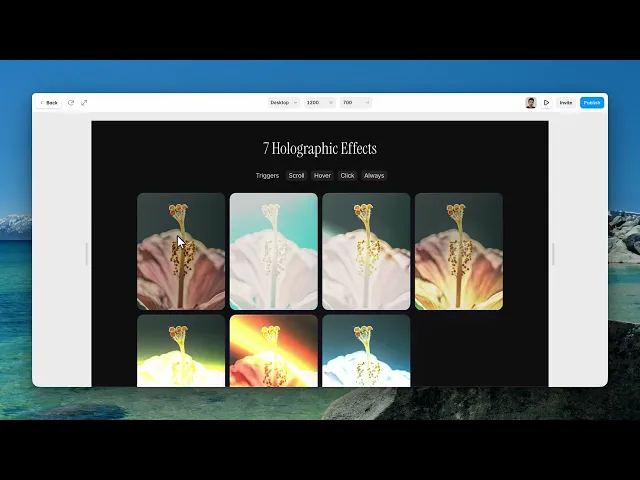
It turns an image into a foil trading card — the surface shifts colour as it tilts, light glares across it, and it lifts off the page.
Everybody who has held a holographic card knows exactly what this is, and that recognition is doing most of the work.
Where you would use it
Perfect for product showcases, collectible cards, portfolios, artwork, and futuristic interfaces.
Controls
16 controls, 6 of which only appear when they are relevant.
Control | Type | Default | Notes |
|---|---|---|---|
Image | ResponsiveImage | — | — |
Effect | Enum | Spectrum / Aurora / Chrome / Emerald / Gold / Lenticular / Lumon — default | — |
Mix | Boolean |
| — |
Foil | Enum | Rainbow / Prism / Cosmos / Sheen / Glitter — default | conditional |
Mix Amount | Number |
| 0–1 · 0 = pure palette, 1 = pure foil. · conditional |
Trigger | Enum | Hover / Scroll / Always / Click — default | — |
Mask | Enum | None / Subject / Custom — default | Subject = use the image's own shape. Custom = white-on-black mask. |
Mask Image | ResponsiveImage | — | conditional |
Intensity | Number |
| 0–1.5 |
Tilt | Number |
| 0–30° |
Glare | Boolean |
| — |
Shadow | Boolean |
| — |
Shadow Color | Color |
| Resting drop shadow color. · conditional |
Glow Color | Color |
| Active glow color — fades in with the effect. · conditional |
Shadow Size | Number |
| 0–3 · Scales the shadow blur and offset. · conditional |
Radius | BorderRadius |
| — |
Working through the panel
Effect and foil
Effect is the base look: spectrum, aurora, chrome, emerald, gold, lenticular or lumon. They're distinct enough that you should try all seven — chrome and lumon are metallic and restrained, spectrum and aurora are full rainbow.
Turn on Mix and two more controls appear: a Foil pattern to blend in — rainbow, prism, cosmos, sheen or glitter — and a Mix Amount to set how much.
That's how you get a look that isn't one of the seven presets. Mix a restrained base with a small amount of glitter and it reads as expensive rather than as a filter.
Trigger and mask
Trigger is hover, scroll, always, or click. Hover is right on desktop; scroll is what you want if the card matters on mobile, where there's no cursor to tilt it with.
Mask decides where the foil appears. None puts it over the whole card. Subject keeps it off your subject and on the background. Custom takes your own mask image.
Subject is the setting that makes this look like a real card rather than a shiny rectangle — on a real foil card the character is printed and the foil is around them.
Depth and finish
Intensity is how strong the foil is. Tilt is how far the card rotates as you move across it.
Glare is the band of light that sweeps over the surface, and Shadow lifts the card off the page. Both are on by default and both should stay on — they're what make it read as a physical object rather than a flat image with a gradient.
With Shadow on you get its colour, a glow colour, and a size. The glow is the coloured light the card casts onto the page around it, and it's worth tinting toward your foil rather than leaving it neutral.
Performance and limits
It stops rendering when it scrolls out of view, so an instance below the fold costs nothing until the visitor reaches it.
Static rendering is handled, so canvas thumbnails and exports show a settled frame rather than a blank box.
Good to know
No setup or coding required. Responsive across desktop, tablet, and mobile.
Refund policy — due to the nature of digital products, all sales are final. Once purchased, this component is non-refundable. Please make sure it fits your needs before completing the checkout.
Support: hi@alicorak.com