Documentation
What it does
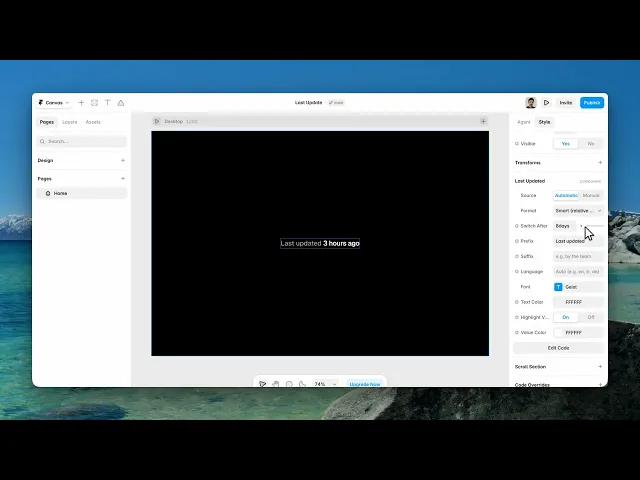
It prints one line of text: a prefix, a date value, and an optional suffix. The value can come from the page itself or from a date you set by hand, and it can be rendered as relative time, an absolute date, or both depending on how old it is.
The point is trust. A documentation page with no date makes a reader wonder whether it still applies; the same page marked "Last updated 3 days ago" answers that before they start reading.
Where you would use it
Documentation and guides, directly under the heading
Legal pages — a privacy policy without a date is a red flag
Blog posts that get edited after publishing, where the original publish date alone is misleading
Portfolios and changelogs, to show the site is maintained
How to add it
Paste the component where the line should appear.
Choose a Source.
Choose a Format.
It renders as plain text and inherits your layout, so it sits inside a stack like any other text layer.
Controls
Source
Control | Type | Default | Notes |
|---|---|---|---|
Source | Automatic / Manual |
| Where the date comes from. |
Date | Date | — | Only appears on Manual. |
Automatic reads the date the browser reports for the document. On a statically hosted site this generally tracks when the page was last published rather than when you edited a particular word. That is usually what you want on a changelog or a portfolio.
Use Manual when the date carries meaning you control — a policy's effective date, or a guide you revised without republishing the whole site. If Automatic ever shows a value that looks wrong for the page, this is the fix.
Format
Control | Type | Default | Notes |
|---|---|---|---|
Format | Relative / Smart / Date / Date & Time / Short |
| How the value reads. |
Switch After | Number |
| 1–90 days. Only appears on Smart. |
Relative — always "2 days ago"
Smart — relative while recent, then an absolute date once it is older than Switch After
Date —
July 16, 2026Date & Time — date plus clock time
Short —
07/16/2026
Smart is the right default and it is worth understanding why. "2 days ago" is the useful reading when something is fresh. "437 days ago" is not — at that point the reader wants the actual date so they can judge it against their own context. Switch After is where you draw that line.
Avoid Date & Time unless the time of day genuinely matters, such as on a status page. On a blog post it reads as machine output.
Text
Control | Type | Default | Notes |
|---|---|---|---|
Prefix | String |
| Text before the value. |
Suffix | String | — | Text after the value. |
Language | String | — | Locale for formatting the date. |
Language changes how the date is written, not the prefix or suffix — those are your own copy and you translate them yourself. Leave it empty to follow the visitor's browser.
Appearance
Control | Type | Default | Notes |
|---|---|---|---|
Font | Font | 15px Medium | Full typography controls. |
Text Color | Color |
| The prefix and suffix. |
Highlight Value | Boolean |
| Colour the date separately. |
Value Color | Color |
| Only appears when Highlight Value is on. |
Both colours default to the same near-black, so turning Highlight Value on changes nothing until you actually pick a different Value Color. That is deliberate — it opts you into the split without imposing a look.
Tips
Muted prefix, solid value. Set Text Color to a grey and Value Color to your body colour. The eye lands on the date, which is the only part that carries information.
Put it under the heading, not in the footer. A reader decides whether a page is current before they read it, not after.
Set Switch After to match your content's shelf life — 7 days suits a changelog, 30–90 suits documentation that ages slowly.
Performance and limits
Plain text, no dependencies, no runtime requests.
The relative value is computed in the visitor's timezone, so "2 days ago" is correct wherever they are.
On Automatic the value comes from the served document, so it updates when you publish rather than the moment you edit.
Good to know
No setup or coding required. Responsive across desktop, tablet, and mobile.
Refund policy — due to the nature of digital products, all sales are final. Once purchased, this component is non-refundable. Please make sure it fits your needs before completing the checkout.
Support: hi@alicorak.com