Documentation
What it does
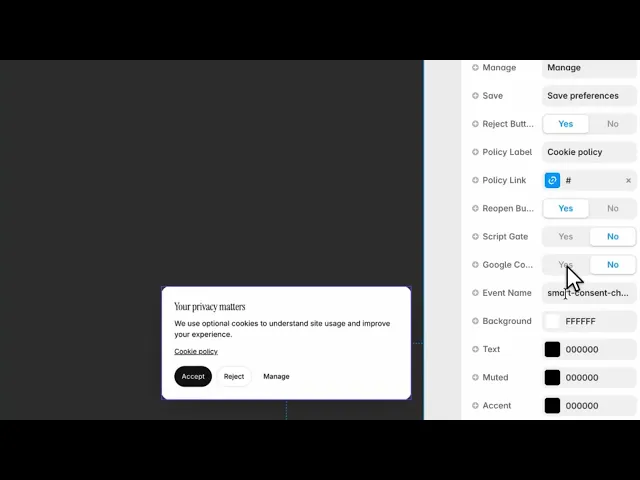
On a visitor's first arrival it shows a banner. They accept everything, reject the optional categories, or open a preferences panel and choose per category. The choice is stored in the browser and the banner does not return until the record expires or you change its version.
Three things happen the moment they choose:
The record is written to the browser's local storage.
Any script you marked up for a category is activated, if that category was allowed.
Google Consent Mode is updated, and a custom browser event is fired so you can react to the choice yourself.
The part that actually matters
Sixty-one controls, but most of them are wording and styling. Ten controls and one piece of markup decide whether the component does its job. Get these right and the rest is decoration.
Consent record
Control | Type | Default | Notes |
|---|---|---|---|
Consent ID | String |
| The storage key. One per site. |
Version | String |
| Change it to invalidate every stored choice. |
Expiry | Number |
| 1–730 days before the banner returns. |
Version is your reset switch. When you add a new category or change what a category covers, the consent you previously collected no longer describes what you are doing. Bump this number and every visitor is asked again. That is the correct behaviour, not an inconvenience.
Script gating — read this twice
Control | Type | Default |
|---|---|---|
Script Gate | Boolean |
|
Google Consent | Boolean |
|
Event Name | String |
|
The component does not block scripts on its own. It cannot — a script tag that has already run cannot be un-run. What it does is activate scripts you have deliberately parked.
To park a script, change its type and tag it with a category:
A browser will not execute a script whose type is text/plain. When the visitor allows the analytics category, the component swaps it for a real script tag and it runs then — and only then. Use preferences, analytics or marketing as the category.
If you skip this markup, your scripts still run before consent and the banner is decoration. This is the single most common way a consent banner ends up doing nothing.
Google Consent additionally pushes the choice into Google's own consent mode, so Analytics and Ads adjust their behaviour. Leave it on if you use either.
Event Name is the browser event fired on every choice. Listen for it if you need to run your own logic when consent changes.
Categories
Control | Type | Default |
|---|---|---|
Preferences | Boolean |
|
Analytics | Boolean |
|
Marketing | Boolean |
|
Turning one off removes it from the panel entirely. Only offer the categories you actually use. A banner listing Marketing on a site that runs no ad scripts asks the visitor to make a decision about nothing, and it invites a "reject" that costs you the categories you do use.
Necessary cookies are always on and cannot be refused — that is what makes them necessary, and its wording is set by the Necessary and Necessary Copy controls.
Placement
Control | Type | Default | Notes |
|---|---|---|---|
Layout | Bar / Floating / Modal |
| — |
Position | Bottom Left / Bottom Center / Bottom Right / Top Center |
| — |
Preview | Auto / Banner / Preferences / Hidden |
| Canvas only. |
Reopen Button | Boolean |
| Lets visitors change their mind later. |
Preview only affects the Framer canvas, so you can design the preferences panel without clearing your browser storage. It has no effect on the published site — you cannot accidentally ship the banner stuck open.
Modal blocks the page; Floating does not. Modal gets a decision immediately at the cost of standing between the visitor and your content. Floating is the better default for most sites, and Bar suits sites with a lot of legal furniture already.
Keep Reopen Button on. Consent that cannot be withdrawn is not really consent, and in several jurisdictions withdrawal has to be as easy as giving it.
Copy
All wording is editable: Title, Message, Settings Title, Settings Copy, the label and description for each category (Pref./Analytics/Marketing Label and Copy), the four button labels (Accept, Reject, Manage, Save), and Policy Label with Policy Link.
Set the Policy Link. It defaults to #, which goes nowhere. Point it at your cookie or privacy policy.
Reject Button can be turned off. Think carefully before you do — a banner offering only "accept" is the pattern regulators single out, and it is also the one visitors resent.
Appearance
A large surface with no surprises. Skim it and set what you need.
Colours: Background, Text, Muted, Accent, Accent Text, Border, and separate Category Text / Category Muted for the panel rows.
Layout: Radius, Panel Width (preferences panel), Padding X, Padding Y, Row Padding, Row Gap, Dividers and Divider Color.
Type: Font for body, Title Font, Category Title, Category Copy.
Toggles: Controls (Checkbox or Switch), Control Size, Active, Inactive, Check colour.
Buttons: Button Layout for shared height and radius, then Primary, Secondary and Text Button for the three button styles.
The defaults are a neutral near-black on white. The one thing worth changing is Accent — it colours the primary button, and leaving it black on a coloured brand reads as unfinished.
Tips
Set Consent ID once and never change it. Changing it orphans every stored choice, exactly as if you had bumped Version — except unintentionally.
Test with your browser storage cleared, not by reloading. Once you have accepted, the banner will not come back for you.
Match the categories to your actual scripts before writing the copy. Rewriting three descriptions after you remove a category is avoidable work.
Performance and limits
The choice lives in the visitor's own browser storage. It does not follow them to another browser or device, and clearing storage brings the banner back.
Gating works on scripts placed in the page's HTML with the markup above. Anything loaded by another component, or by Framer itself, is outside its reach.
This is a mechanism, not legal advice. It collects, stores and acts on a choice; whether your particular setup satisfies GDPR, ePrivacy or any other regime depends on which scripts you gate, how you word the categories, and where your visitors are. If the answer matters commercially, have someone qualified check it.
Good to know
No setup or coding required. Responsive across desktop, tablet, and mobile.
Refund policy — due to the nature of digital products, all sales are final. Once purchased, this component is non-refundable. Please make sure it fits your needs before completing the checkout.
Support: hi@alicorak.com