Documentation
What it does
It softens the way your page scrolls — instead of the content tracking the wheel exactly, it eases into position with a little momentum.
One control, and that's the entire component. But it changes the feel of a whole site more than most things you can add to it.
Where you would use it
Wrap your page content in it — it takes a slot, so whatever you put inside scrolls with the easing applied.
Then set Intensity. Low is a gentle softening most visitors won't consciously notice, which is usually what you want. High is pronounced and reads as a deliberate effect.
A warning about high values: scrolling that lags behind the wheel feels broken rather than premium, especially on a trackpad. If you're unsure, go lower than you think.
Great for portfolios, landing pages, agencies, and product websites
Controls
2 controls.
Control | Type | Default | Notes |
|---|---|---|---|
Children | Slot | — | — |
Intensity | Number |
| 0–100% |
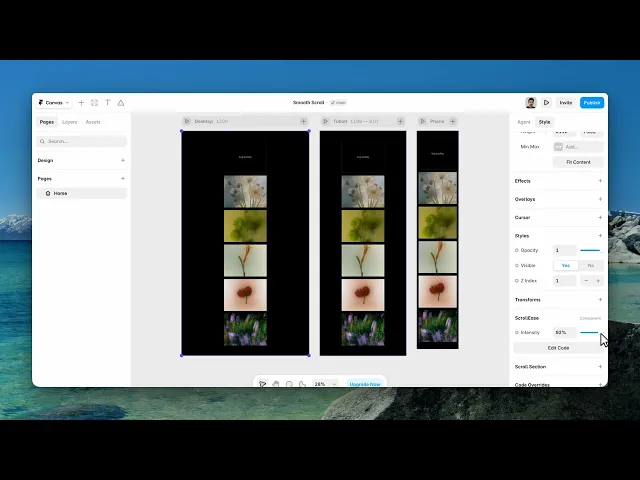
Working through the panel
What to watch
Two things worth knowing.
Anchor links and in-page navigation still work, but they inherit the easing too, so a jump to a section becomes a glide. Usually an improvement, occasionally not on a long page.
And test it on a trackpad as well as a mouse wheel. The two feel quite different, and a setting that's pleasant with a wheel can feel heavy on a trackpad.
Performance and limits
It stops rendering when it scrolls out of view, so an instance below the fold costs nothing until the visitor reaches it.
Static rendering is handled, so canvas thumbnails and exports show a settled frame rather than a blank box.
Good to know
No setup or coding required. Responsive across desktop, tablet, and mobile.
Refund policy — due to the nature of digital products, all sales are final. Once purchased, this component is non-refundable. Please make sure it fits your needs before completing the checkout.
Support: hi@alicorak.com