Documentation
What it does
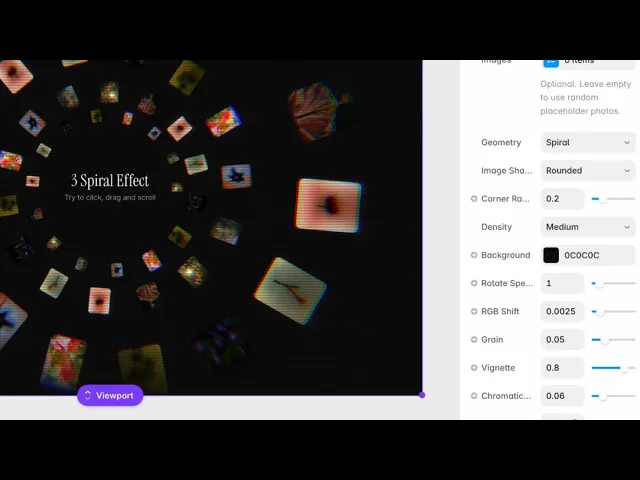
Your images arranged in a rotating three-dimensional structure — rings, a tunnel, or a spiral — with film-style post-processing over the whole thing.
Where you would use it
Spiral Image Effect arranges your images in beautiful geometric layouts with smooth motion, cinematic post-processing effects, and subtle mouse interaction—perfect for hero sections, portfolios, galleries, and creative showcases.
Perfect for portfolios, product showcases, agency websites, photography galleries, landing pages, and any section that needs an eye-catching interactive visual.
Controls
21 controls, 7 of which only appear when they are relevant.
Control | Type | Default | Notes |
|---|---|---|---|
Images | Array | — | Optional. Leave empty to use random placeholder photos. |
Geometry | Enum | Rings / Conical Tunnel / Spiral — default | — |
Image Shape | Enum | Rectangle / Rounded / Circle / Hexagon — default | — |
Corner Radius | Number |
| 0–1 · conditional |
Density | Enum | Sparse / Medium / Dense — default | — |
Background | Color |
| — |
Rotate Speed | Number |
| 0–10 |
RGB Shift | Number |
| 0–.02 |
Grain | Number |
| 0–.2 |
Vignette | Number |
| 0–1 |
Chromatic Aberration | Number |
| 0–.3 |
Bloom | Number |
| 0–1 |
Scanlines | Number |
| 0–1 |
Mouse Parallax | Number |
| 0–1 |
Show Title | Boolean |
| — |
Title | String |
| conditional |
Subtitle | String |
| conditional |
Title Color | Color |
| conditional |
Subtitle Color | Color |
| conditional |
Title Font | Font |
| conditional |
Subtitle Font | Font |
| conditional |
Working through the panel
Geometry and shape
Geometry is the arrangement: rings, conical tunnel, or spiral.
Rings stack your images in concentric circles. Conical tunnel puts the viewer inside, looking down its length. Spiral winds them into a single continuous coil.
Image Shape is how each picture is cut — rectangle, rounded, circle or hexagon. Choosing rounded reveals a Corner Radius control.
And Density is sparse, medium or dense: how many images fill the structure. Dense looks impressive and costs the most to render.
The post-processing
Six controls sit on top of the render, and together they're what stop this looking like a 3D demo.
RGB Shift and Chromatic Aberration both separate the colour channels — the first across the whole frame, the second toward the edges, the way a real lens does.
Bloom spreads light from the bright areas. Scanlines lay horizontal lines over it, which reads as a monitor. Grain adds texture, and Vignette darkens the corners.
The defaults are restrained and worth keeping close to. Every one of these raised together turns an elegant structure into a mess of effects.
Motion and text
Rotate Speed is how fast the structure turns, and Mouse Parallax is how much it shifts as the visitor moves — which gives the depth something to demonstrate.
Show Title is on by default and reveals a full set: title and subtitle text, their colours, and separate fonts.
The defaults are placeholder copy, so replace them or turn the whole thing off. Shipping with the demo text still in place is the mistake this control invites.
Performance and limits
It stops rendering when it scrolls out of view, so an instance below the fold costs nothing until the visitor reaches it.
Static rendering is handled, so canvas thumbnails and exports show a settled frame rather than a blank box.
It renders with WebGL at whatever size and pixel density the frame needs — there is no image to download and no resolution to outgrow.
Good to know
No setup or coding required. Responsive across desktop, tablet, and mobile.
Refund policy — due to the nature of digital products, all sales are final. Once purchased, this component is non-refundable. Please make sure it fits your needs before completing the checkout.
Support: hi@alicorak.com