Documentation
What it does
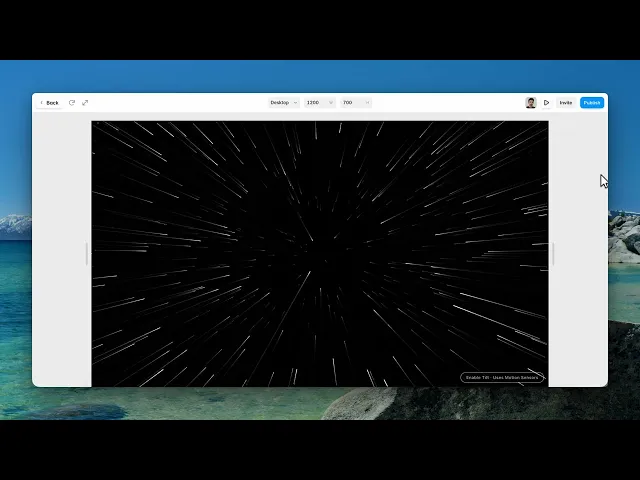
A starfield you fly through — stars streaming past the camera and out of frame, continuously.
It responds to the cursor, and it has a hyperspace mode, which is the part everyone reaches for first.
Controls
12 controls, 3 of which only appear when they are relevant.
Control | Type | Default | Notes |
|---|---|---|---|
Stars | Color |
| — |
Background | Color |
| — |
Quantity | Number |
| 64–2048 |
Speed | Number |
| .1–10 |
Reverse | Boolean |
| — |
Mouse | Boolean |
| — |
Easing | Number |
| 1–20 · conditional |
Device Tilt | Boolean |
| Shows an Enable Tilt button. Motion sensors activate only after the visitor taps it. |
Click Warp | Boolean |
| — |
Hyperspace | Boolean |
| — |
Warp Factor | Number |
| 2–30 · conditional |
Trail Fade | Number |
| .02–.5 · conditional |
Working through the panel
The field
Two colours: the stars and the space behind them.
Quantity is how many stars there are, and it goes from sixty-four up past two thousand. High counts look dense and cost more to render. On a hero, a few hundred already reads as space; more than that is texture you're paying for.
Speed is how fast you travel. Reverse flips the direction so stars fly toward you instead of past you, which reads as arriving rather than departing.
Interaction
Mouse is on by default, and it steers — moving the cursor turns the direction of travel. An Easing control sits alongside it for how smoothly the field follows your hand. Low is immediate and a bit twitchy; higher glides.
Click Warp gives a burst of acceleration when the visitor clicks. It's on by default, and it's the small reward that makes people click again.
Device Tilt does the same steering from a phone's motion sensor. Leave it off unless you specifically want it — it asks for a permission most visitors won't expect.
Hyperspace
Hyperspace turns the stars from points into streaks, the way a jump to lightspeed looks in every film that has one.
Two controls shape those streaks: Warp Factor is how long they stretch, and Trail Fade is how quickly they disappear behind you — low values leave long persistent trails, high values keep it cleaner.
Those two are already in your panel before you touch Hyperspace, because Click Warp uses them too. They shape the burst on click as well as the permanent streak.
Hyperspace itself is a strong look. Good for a landing page, exhausting behind content anyone has to read.
Performance and limits
It stops rendering when it scrolls out of view, so an instance below the fold costs nothing until the visitor reaches it.
Static rendering is handled, so canvas thumbnails and exports show a settled frame rather than a blank box.
Good to know
No setup or coding required. Responsive across desktop, tablet, and mobile.
Refund policy — due to the nature of digital products, all sales are final. Once purchased, this component is non-refundable. Please make sure it fits your needs before completing the checkout.
Support: hi@alicorak.com